Tella vs Descript: Which Screen Recording Tool Is Right for You?
When I decided to create online courses for my website templates, I went down the rabbit hole of exploring screen recording tools. I started with Loom and switched to Tella (read more about that here) and have been using Tella for a while and love it. I also use Tella to share short explainer videos with clients and I started recording YouTube videos every week, so I am a power user!
But I know a lot of people in my online business world who swear by Descript, and it does some things that Tella doesn’t (yet!) So, I decided to take Descript for a spin to compare the two tools and make sure Tella was still the right tool for me.
If you decide that Tella is the right tool for you, get 30% off your first year if you use the link below.
And if you want to check out Descript to compare the tools yourself get 50% off Descript’s Creator plan for your first 2 months*
Watch my full video comparison below or keep reading for the breakdown!
Quick Overview of Tella and Descript
Tella is a screen recorder focused on making it super easy to record, edit, and share beautiful videos without needing to be an expert video editor. It has a clean, intuitive design and is built for speed and beginner friendly editing. But Tella has started adding more powerful tools for more experienced editors and is actively making investments in new features.
Descript has been around longer than Tella and is more than just a screen recorder and video editor. It can be used to record and edit podcasts and has powerful AI tools that can support your video creation and editing process – beyond what is available in Tella today. It also has a larger learning curve because its editor is more complex.
The bottom line: Tella is simpler and more intuitive. Descript is powerful and more complex. Which one you need depends on what you're trying to do and how much time you want to invest in learning a new tool.
Recording
When it comes to recording, Tella and Descript are comparable. Both tools offer:
A desktop app (Mac and Windows)
A web app
The ability to record your screen, camera, or both
Tella also has a Chrome extension as an additional recording option. Descript adds the ability to record audio only or record with multiple people. But for most solopreneurs, the recording experience will feel similar in both tools.
The real differences are the editing process.
The Tella Editor
Tella's editor is simple, focused, and intuitive. Here is a screenshot of Tella’s editor.
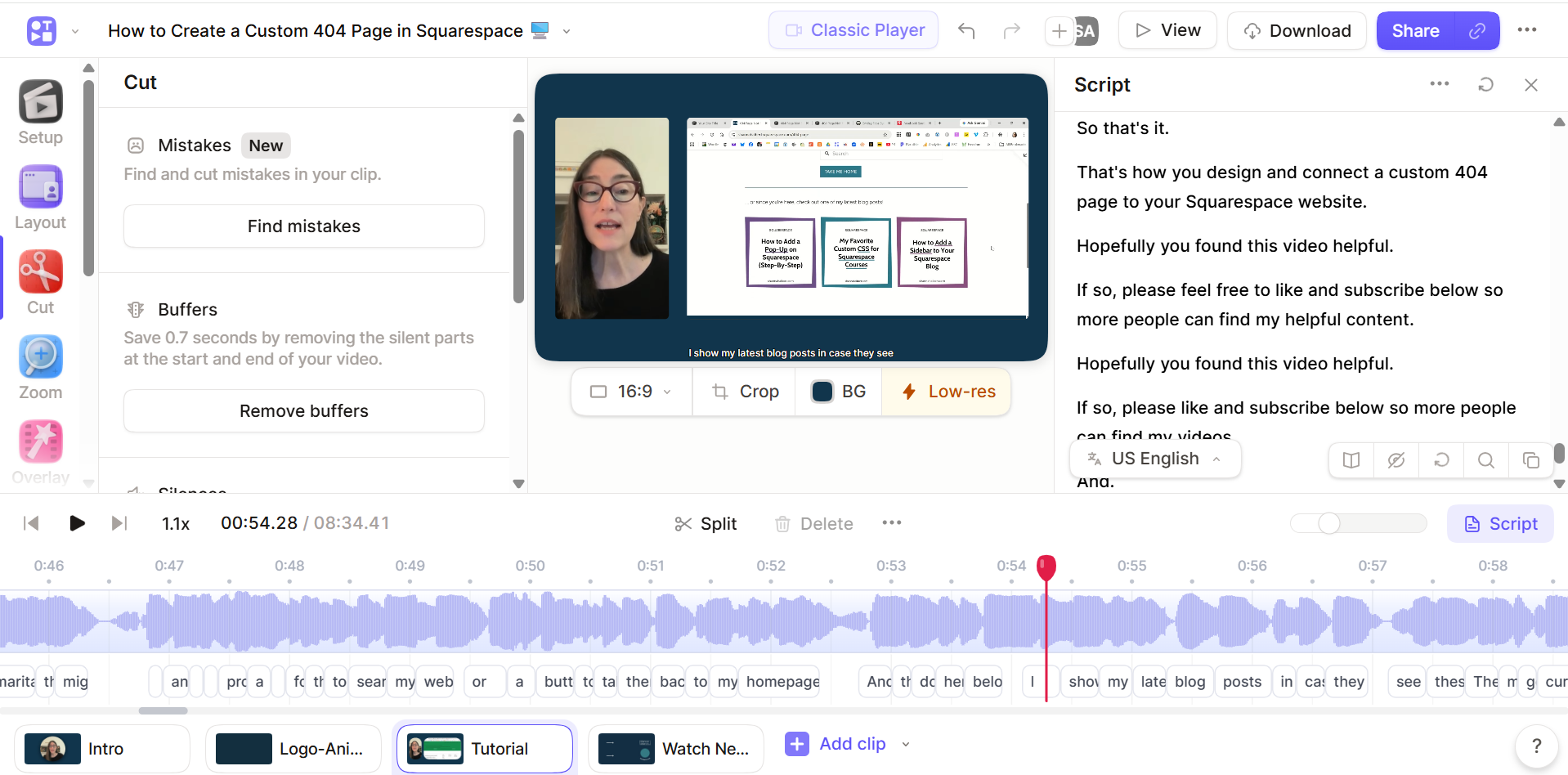
Here’s what makes it great:
Video Clips I love recording my videos in clips — one section at a time — so I can re-record just one part without starting over. You can upload clips from your desktop, record new clips directly from the editor, or move clips to different videos. It just feels easy to work with your videos in clips.
Script-Based Editing Most screen recording tools have this feature today and it saves so much time. You can highlight text directly in your script and cut it from the video in one click.
Waveform Editing Script based editing isn’t always perfect so when you need more precision, you can edit using the waveform editor that displays the audio waves of your recording. The visual design of Tella’s waveform editor is easy on the eyes and simple to use. In the summer of 2026, Tella updated the editor to show the script right below the waveform editor making it even easier to accurately trim your videos.
AI Editing Tools Tella's AI tools include:
Find Mistakes: identifies repeated phrases and suggests the best take
Remove Buffers: cleans up the beginning and end of your video
Remove Silences
Remove Filler Words
Studio Voice: removes background noise and smooths out your audio
Layouts One of my favorite Tella features. With one click, I can switch between 30+ layout presets: side by side, camera bubble, just screen, just camera, and more. I can apply different layouts to different parts of my video, and Tella even has an AI tool that will automatically generate layouts for you based on what you're saying and displaying on your screen share.
B-Roll Video (new!) Tella recently added the ability to upload background video that will play behind your audio (so you are not restricted to JUST video that you record). You can also use AI to generate media for you to insert into your video. This gives you a lot more flexibility for creative video editing – if you want to take it to the next level (but not quite the level of Descript.)
Effects and Overlays You can add blurs, highlights, and zooms to your video. In July 2026, Tella added text, media, and sound effect overlays, and soon after, a multi-track editor to help you manage multiple effects and overlays. The effects and overlays are only displayed on the timeline when you are in one of those tools so things stay simple and clean when you are in other tools.
Style & Audio Tella makes it super easy to change your background, add borders, adjust subtitle styles, add background music, and adjust mic vs. system audio levels and adjust the centering of your camera (I never seem to be in the middle!). The tools are easy to navigate and quickly apply to your video.
Video Analytics For videos that are hosted on Tella (from the video view page or embedded in your website), you can view analytics on views, traffic sources, and engagement. (Analytics is not currently available in Descript)
The Tella editor is made for people who want polished, professional videos without a steep learning curve.
The Descript Editor
Descript's editor has a very different look and feel. It looks like a professional video editing tool. It’s not as intuitive as Tella. (I had to search for help many times and sometimes even the help was confusing.) But, there are a few more effects that you can add to your video! Here is what the Descript editor looks like. You can hide parts of the editor (like the complicated timeline at the bottom) if you aren’t using them.
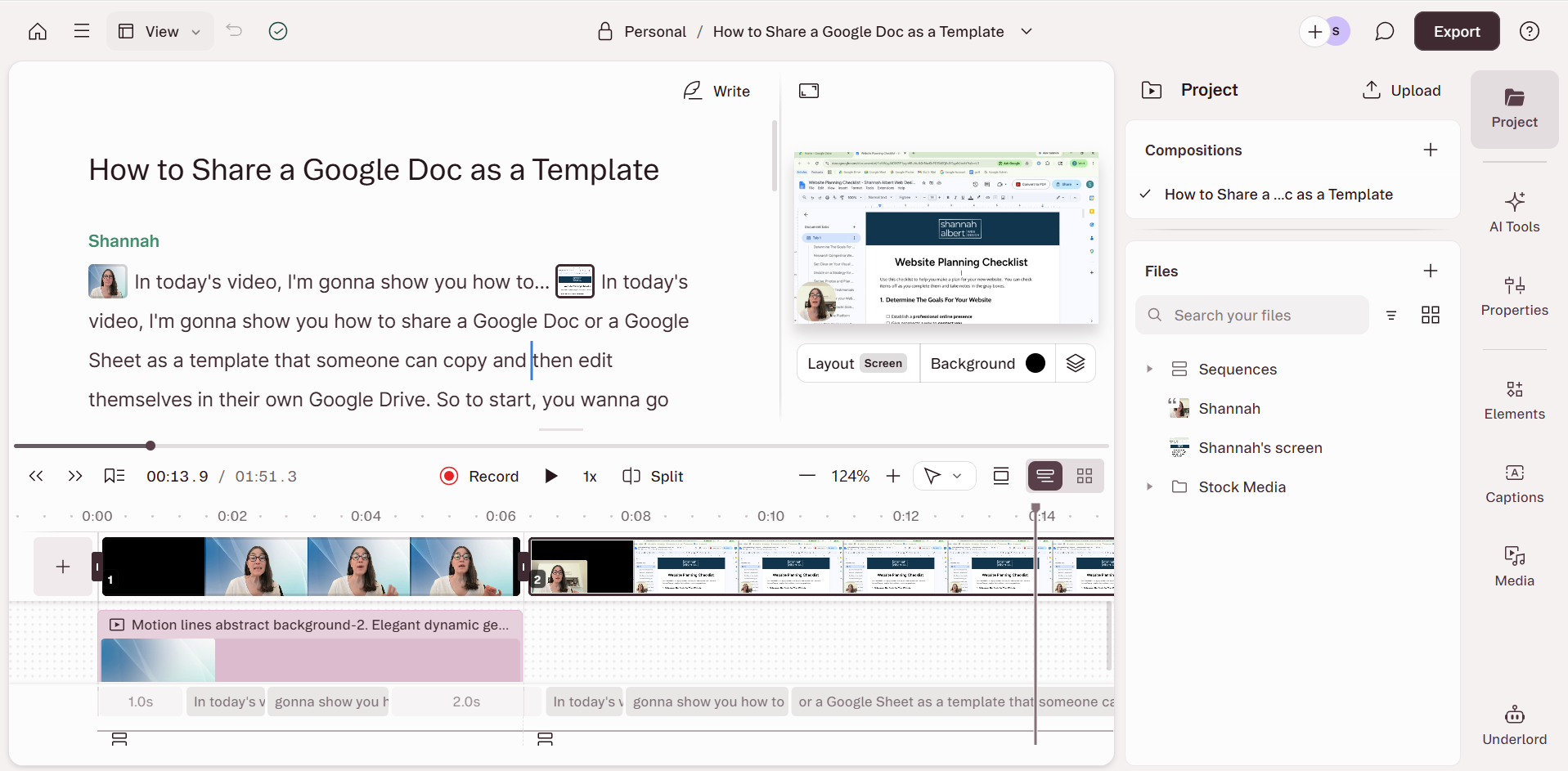
Here’s what stands out in Descript’s editor:
Better Transcript-Based Editing Descript was one of the first tools where you could highlight text in your script and delete it from the video. It’s where the name of the tool comes from, so it should get props for that! And after using it a bit, I do think Descript is cleaner with its script edits than Tella is. (It did have a head start.)
Word Regeneration This is a very cool feature that Descript has and Tella does not. If you say the wrong word, you can type the correct word and Descript will regenerate that word IN YOUR VOICE. No re-recording needed. I mess up words all the time so I would get a lot of use out of this one!
Scenes Instead of clips, Descript uses scenes. You can split your video into scenes then apply specific edits to each scene independently. You can also add new scenes mid-video. You can record a new clip, add AI generated audio, upload a video file right into the middle of your project. Scenes were not intuitive to figure out, but once I got the hang of them, they were easy to apply. They also allow you to easily SPLIT a section of your recording, which WAS harder to do in Tella, but Tella recently added the ability to split clips just like you can do in Descript.
Flexible but Manual Camera/Screen Layouts Descript has complete flexibility for you to manually adjust your camera and screen frames, so you can manually create all of the layouts available in Tella, but you can’t do it with one click.
Layouts with Text Descript has layouts that Tella doesn't: specifically, layouts that include text panels. These layouts allow you to display editable text next to your camera and you can edit the text right in Descript. You can format the text section using your branded colors and fonts and apply animations. This is really helpful for explainer-style content. You can also create text-based intro and outros with pre-made layouts.
AI Tools In addition to the AI features you will also find in Tella (filler word removal, silence removal, etc.), Descript has some extras:
Underlord: This is Descript's AI co-creator. You can type in instructions for video edits and Underlord will make them for you, or you can ask Underlord questions if you need help figuring out the tool. (The name of the tool is intense but it’s pretty powerful!)
Eye Contact Correction: if you're not looking directly at the camera, Descript adjusts the video so it looks like you are. (Another tool I would definitely make use of!)
Green Screen: removes your background so you can replace it with any media you choose
Clip & Highlight Reel Creation: Repurpose your video into clips automatically
AI Video & Audio Generation With Descript you can use AI to generate video, custom avatars, and AI voices for voiceovers (skipping recording completely!)
More Robust Video Effects Descript lets you add text, shapes, annotations, overlays, progress bars, GIFs, and all sorts of media to your video. There are more graphics and media options in Descript than there are in Tella. Media and graphics are added as layers in a timeline, which gives you a lot of control in your editing, but it’s a more advanced skill to navigate the Descript timeline and get these media effects timed and applied the way you want them.
Tella has added more options recently for overlay effects including text, media, and sound effects. AND they now have a multi-track editor to sync up multiple effects. This feature is now more on par with Descript, but I still find the editor more intuitive to use and less overwhelming!
Pricing
Tella and Descript have different pricing strategies.
Both tools have free options with different limitations
Tella’s paid plans all include unlimited video recording, upload and storage. You pay more for custom branding videos and a few more advanced features.
Descript’s paid plans are primarily based on usage, with some additional features and custom branding in higher-level plans.
Both products provide Enterprise plans, but I will focus on plans for solopreneurs and small teams.
Tella Pricing Plans
Here is a high-level overview of Tella’s plans and what you will pay per month with an annual subscription. You can also subscribe month-to-month and pay more. See Tella’s pricing page for more details and specific features of each plan.
Free trial: You can try out all of Tella’s features for 7 days (and they will give you more time, if you need it!)
Pro Plan ($13/mo | $9/mo for your first year): Unlimited videos, 30 FPS and 4K export, team collaboration, and analytics (this is the plan I have)
Premium Plan($19/mo | $13/mo for your first year): Everything in Pro, plus custom branding, custom domain, 60 FPS export, and advanced analytics
Notes on Video Quality for Exports
30 FPS is standard for web quality videos. 60 FPS is used for gaming and high motion graphics.
1080p is Full HD format (baseline video quality) and 4K is Ultra HD (4x sharper) with higher quality for zooming and cropping.
You can get 30% off your first year of Tella using the button below. You can test it out with the free plan and your discount will be applied when you upgrade.
Descript Pricing Plans
Descript’s media hours include hours of recorded or uploaded videos. You are also limited by how much video storage you can use.
Here is a high-level overview of Descript’s plans and what you will pay per month with an annual subscription. You can also subscribe month-to-month and pay more. See Descript’s pricing page for more details and specific features of each plan.
Free Plan: 1 media hr/mo, 100 AI credits (one time, once you run out, no more!), 5GB video storage
Hobbyist Plan ($16/month): 10 media hrs/mo, 400 AI credits/mo, 1080p exports, 100GB video storage
CreatorPlan($24/month): 30 media hrs/mo, 800 AI credits/mo, 4K exports, 1TB video storage, custom branding
Business Plan ($50/month): 40 media hrs/mo, 1500 AI credits/mo, 4K exports, 2TB video storage, custom branding, custom avatars
Note: You can download up to 60 FPS on all Descript plans. You set the FPS in the editor before you download.
Descript’s pricing is higher than Tella’s (especially if you want 4K downloads and more than 10 media hours per month, which require Descript’s Creator plan at $24/month). It comes down to what editing and AI tools you need for the level of video production you want, and whether they are worth the extra cost.
The Net-Net: Which Tool Is Right for You?
After my Descript dry run, I have decided to stick with Tella. For my use case there are a lot of “nice to have’s” with Descript (like word regeneration, eye contact, and text-based layouts) but it’s not worth the extra cost for me and it feels claustrophobic to be always checking my usage to make sure I don’t run out! I also know that Tella is constantly adding new features and upgrades, and many of my “wish list” features have been added even since I initially wrote this post!
Here is how I would recommend making your decision if, like me, you are creating tutorials, course videos, client updates, or YouTube videos:
Choose Tella if you:
Want a simple, intuitive tool you can learn quickly
Don't need heavy post-production
Want great-looking videos without a lot of effort
Are budget-conscious
Choose Descript if you:
Produce podcasts or audio content in addition to video
Want advanced AI features like word regeneration, eye contact, and green screen
Want to generate long form video or audio completely using AI (potentially leveraging personalized avatars)
Are comfortable with a more complex editor and a higher price tag
For most solopreneurs and small business owners, Tella is going to be the better fit. It does everything you need it to do, and it does it simply and beautifully.
Not sure yet? Both tools have free plans so you can try them out with no time pressure. Use my link below to sign up with Tella to get 30% off your first year if you decide to upgrade to a paid plan!
And if you want to check out Descript to compare the tools yourself get 50% off Descript’s Creator plan for your first 2 months*